Explore
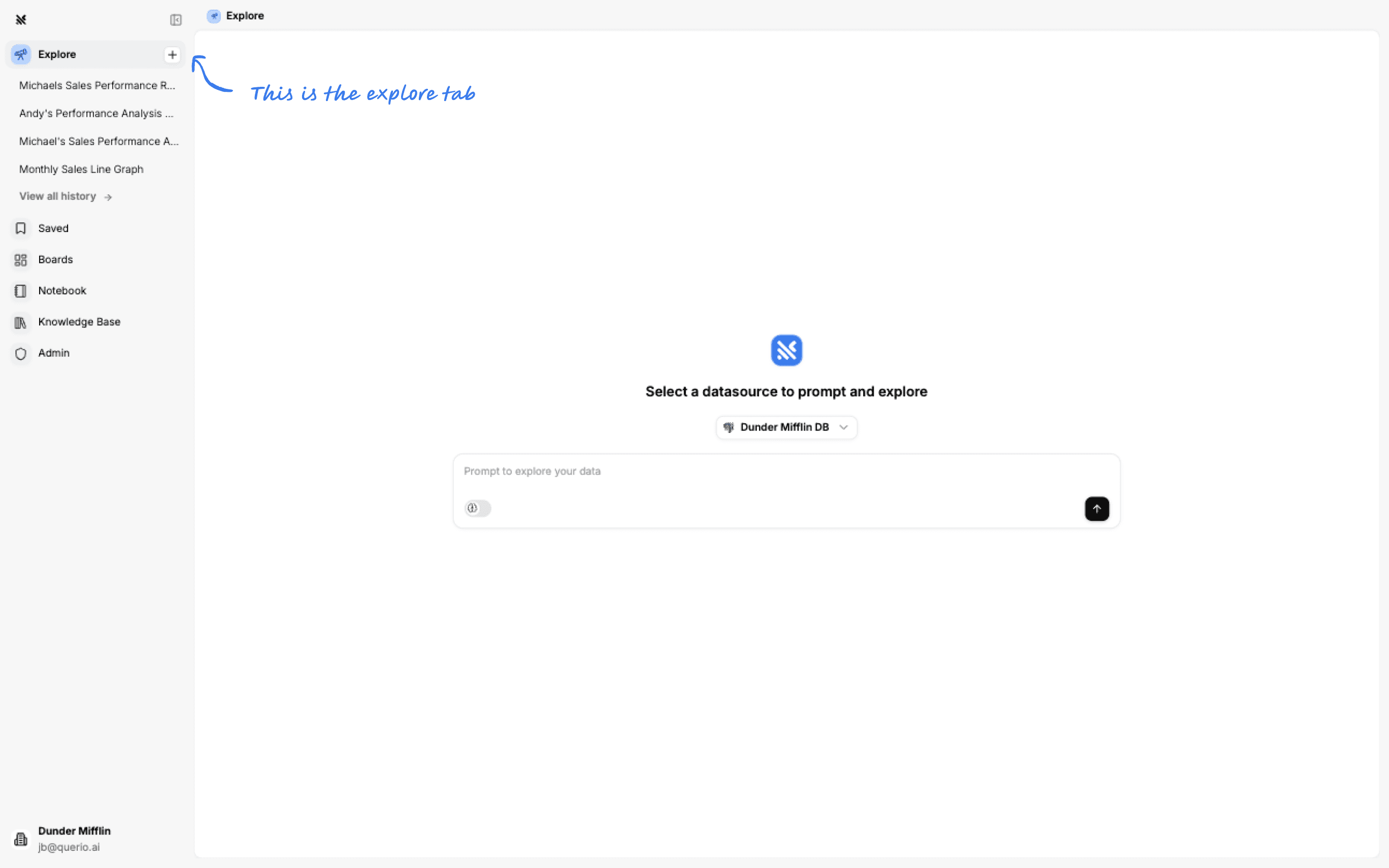
The Explore tab is where you can tell the Querio AI agent which insights you'd like it to generate for you.
Exploring Your Data
Prompting
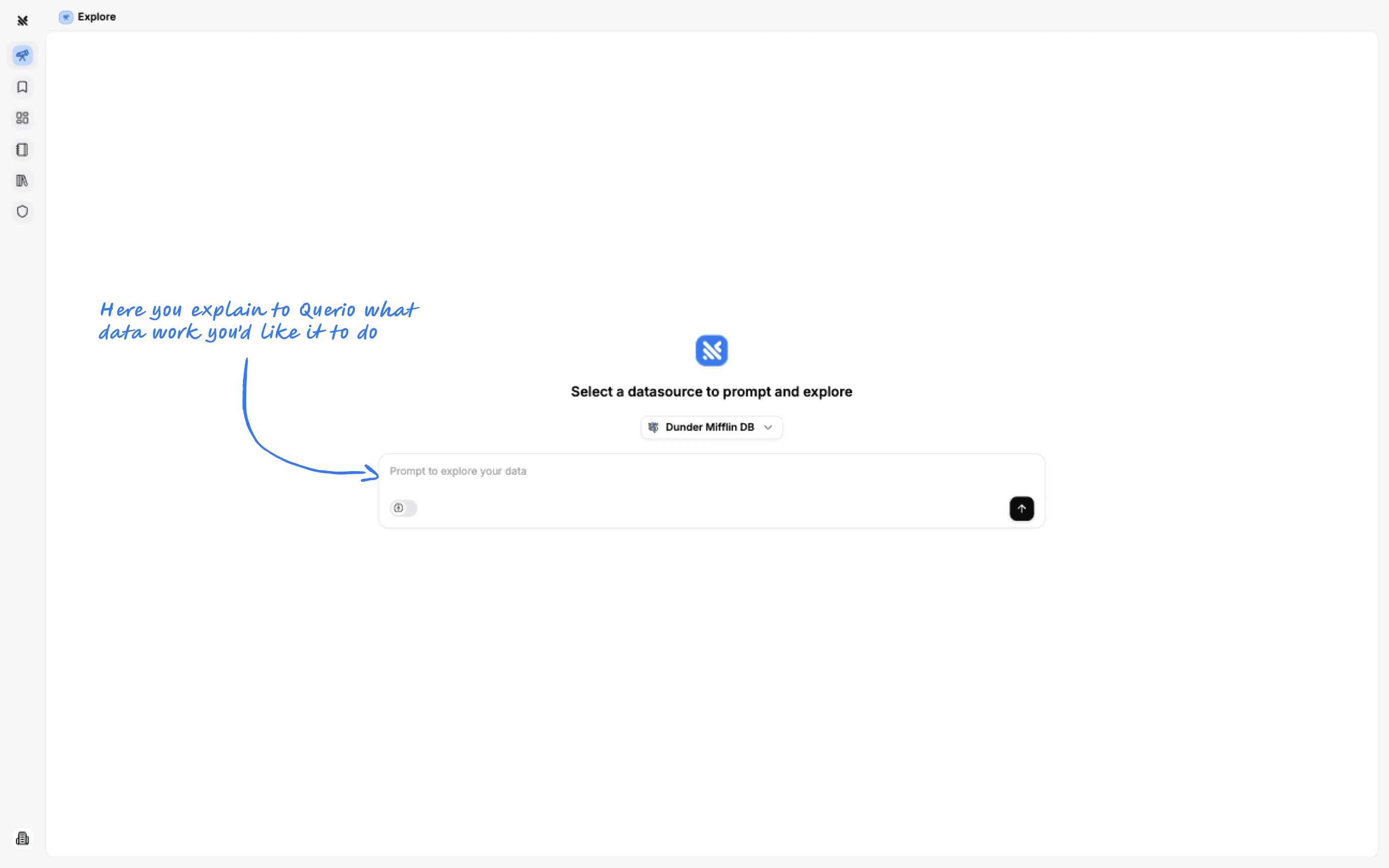
Type your prompt into the text box and remember to follow our prompt-writing tips!
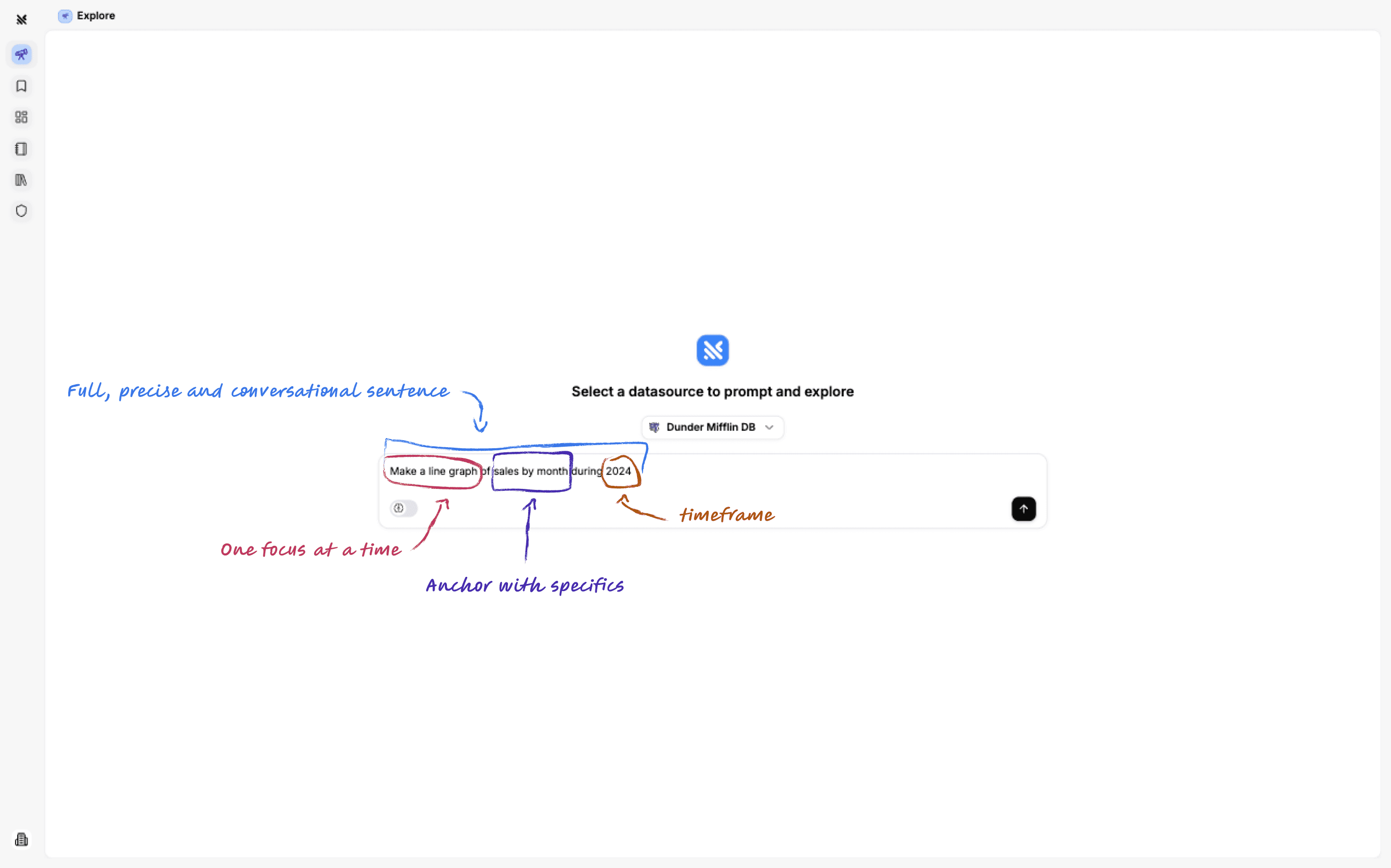
1. Talk as if with a human
Just like a human, if you write full sentences, are precise & conversational, Querio will understand you better.
2. One focus at a time
Write prompts with one focus insight in mind; it improves accuracy and editability.
3. Anchor with specifics
Concrete business terms, names of tables or columns, and mentions!
4. Add a timeframe
Specify a time period you are interested in, unless all time truly makes sense for the prompt you're running.
Notebook & Chat
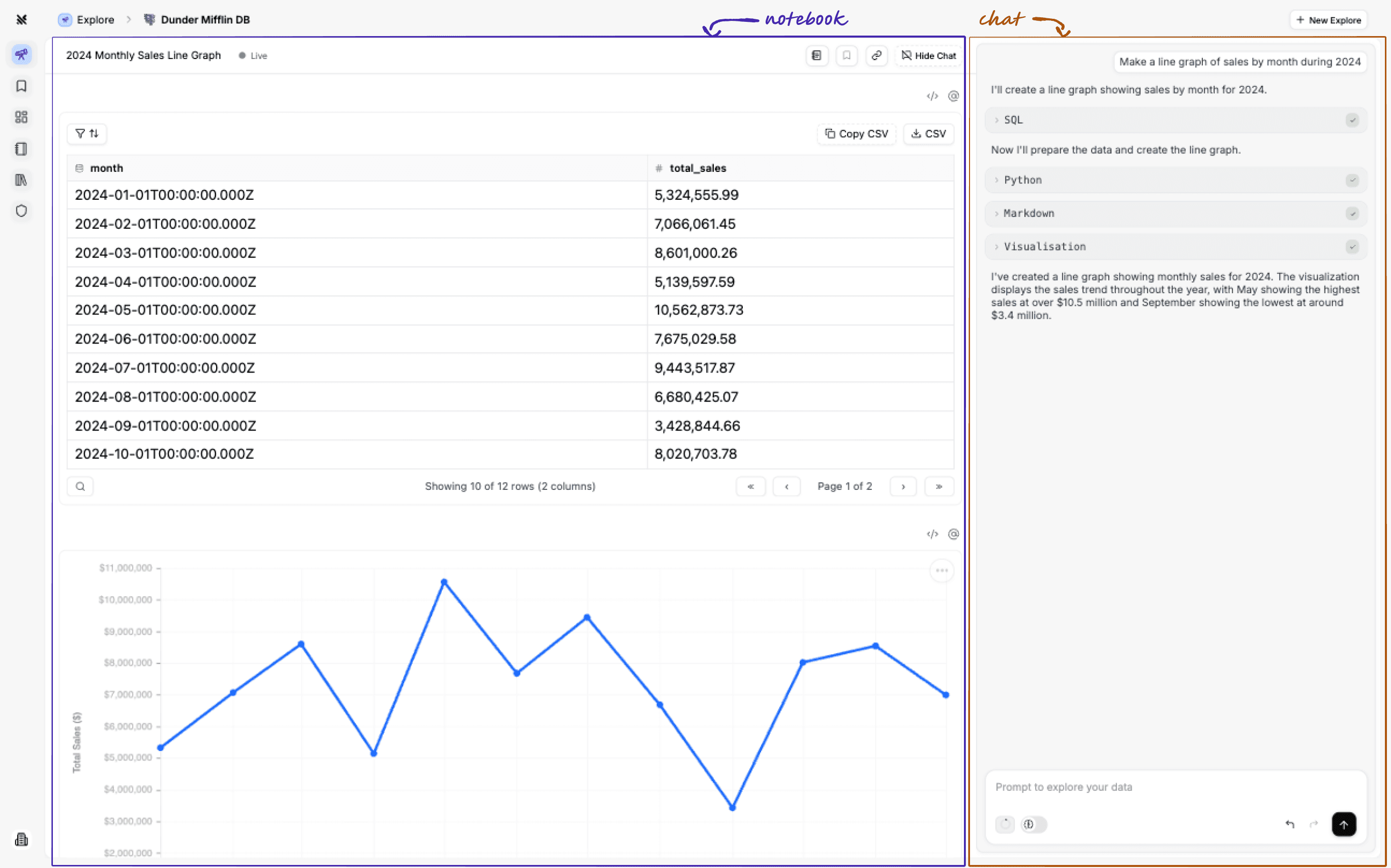
Once you send a prompt to the Querio agent, the screen will split in two.
Notebook on the left
The notebook is where the agent will show all of its data insights.
Chat on the right
The chat is where you can see the agent's work, and you can ask for edits or follow-ups.
Additional Features
Saving Insights
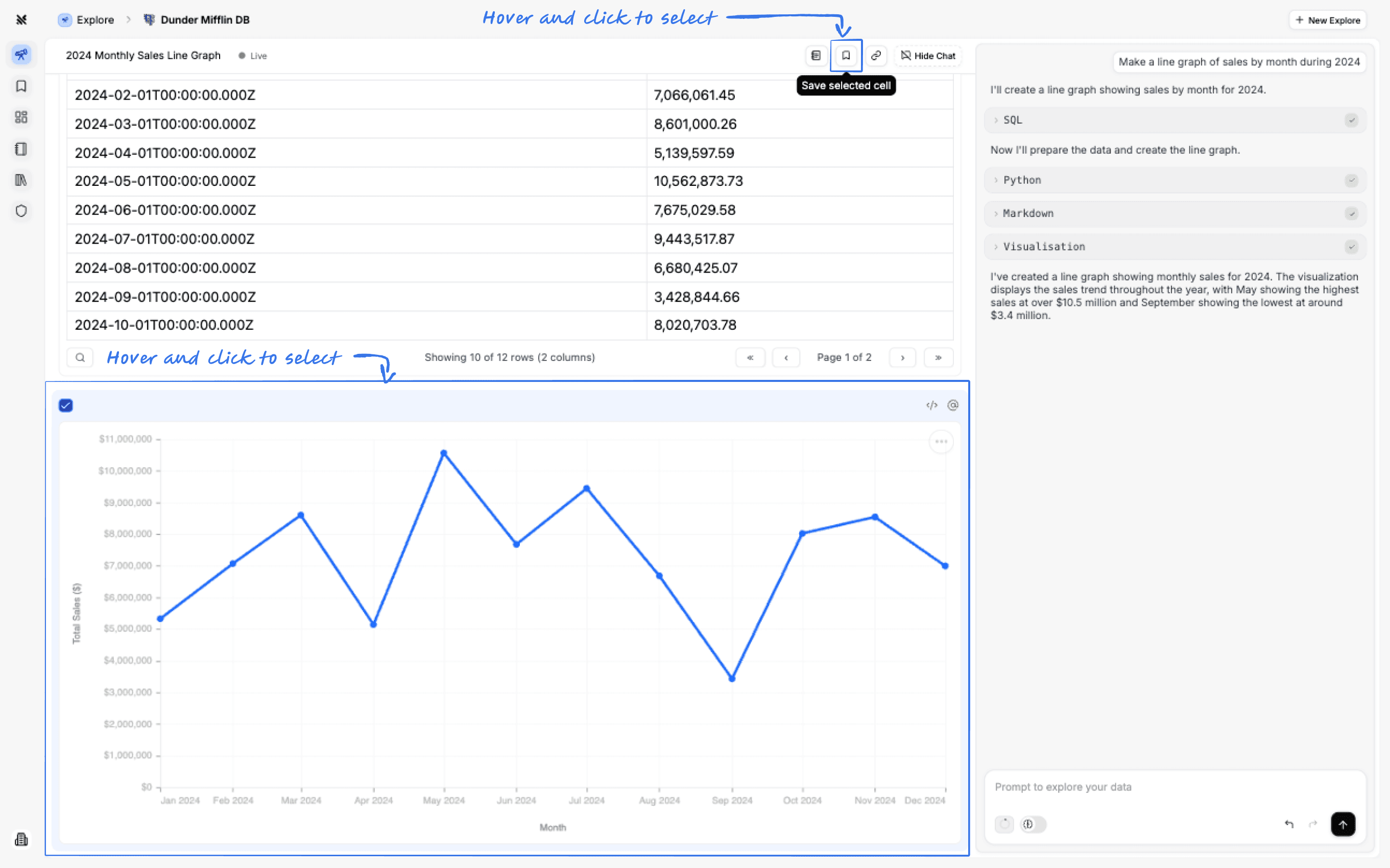
An insight is a single or a collection of cells outputs.
You can save an insight by selecting a cell from the notebook and clicking the save button on the top right of the notebook.
Using Mentions
You can use mentions to quickly reference specific values from your database columns or cells from the notebook when writing prompts in the Explore page.
Using Mentions to Tag Cells
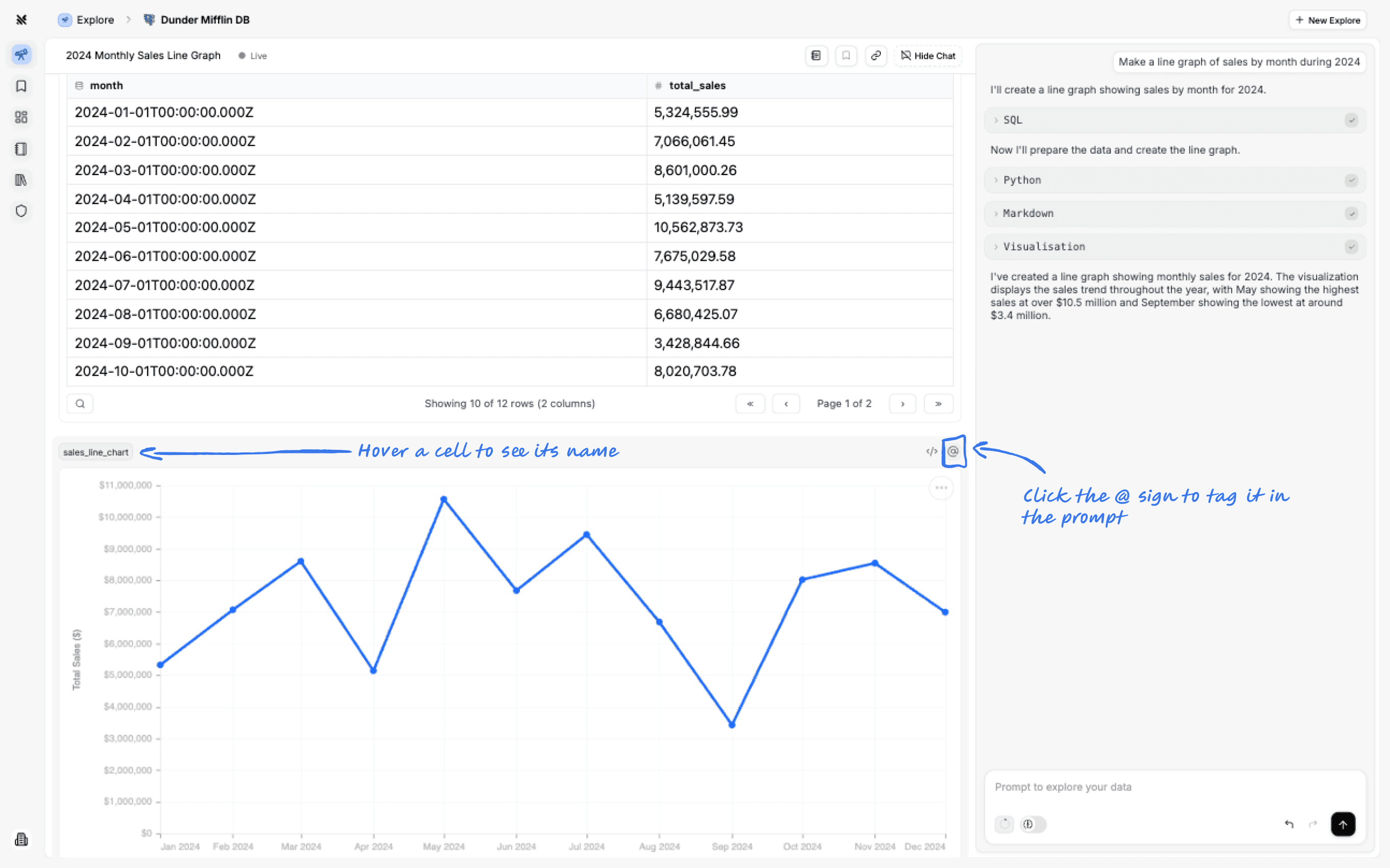
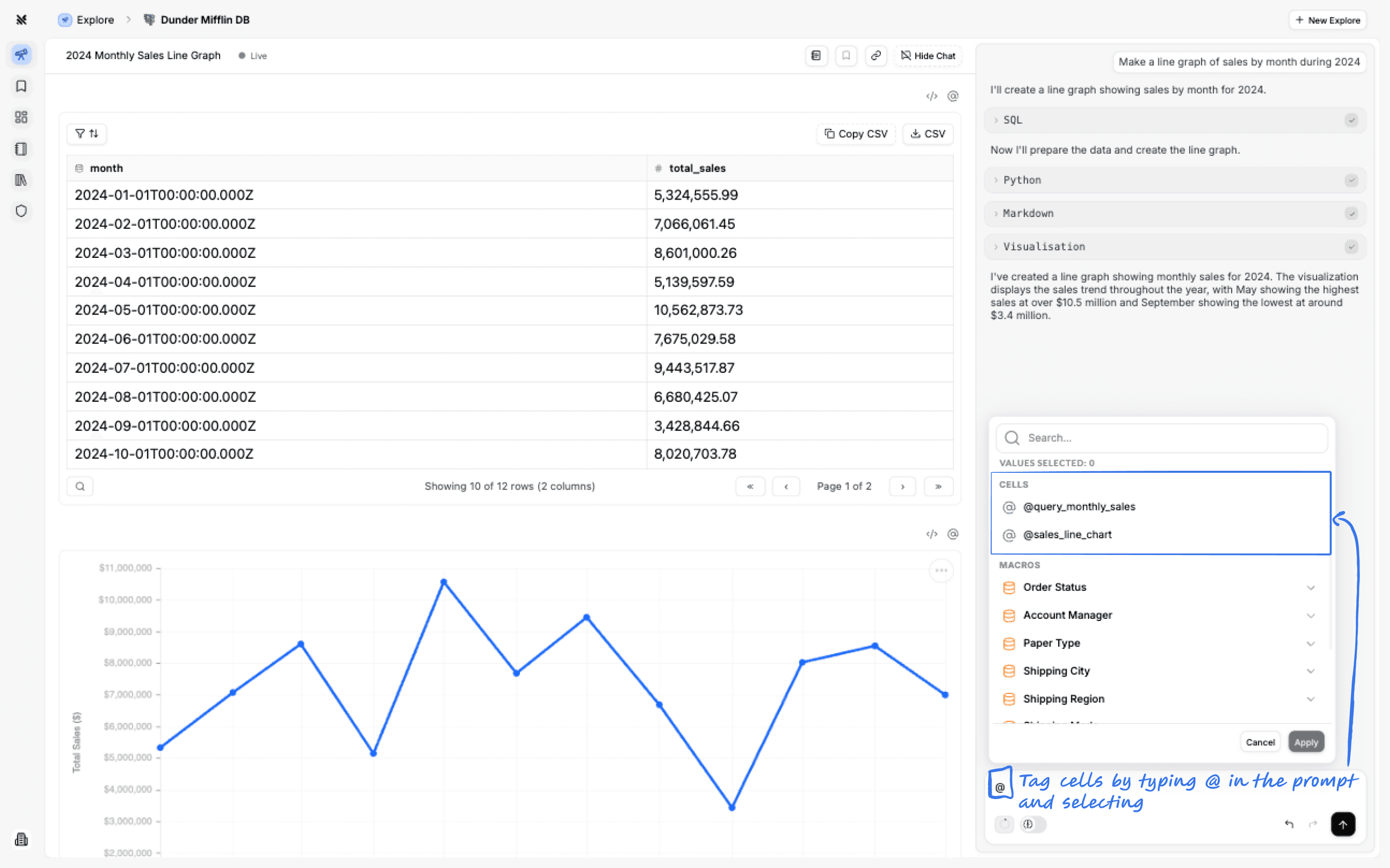
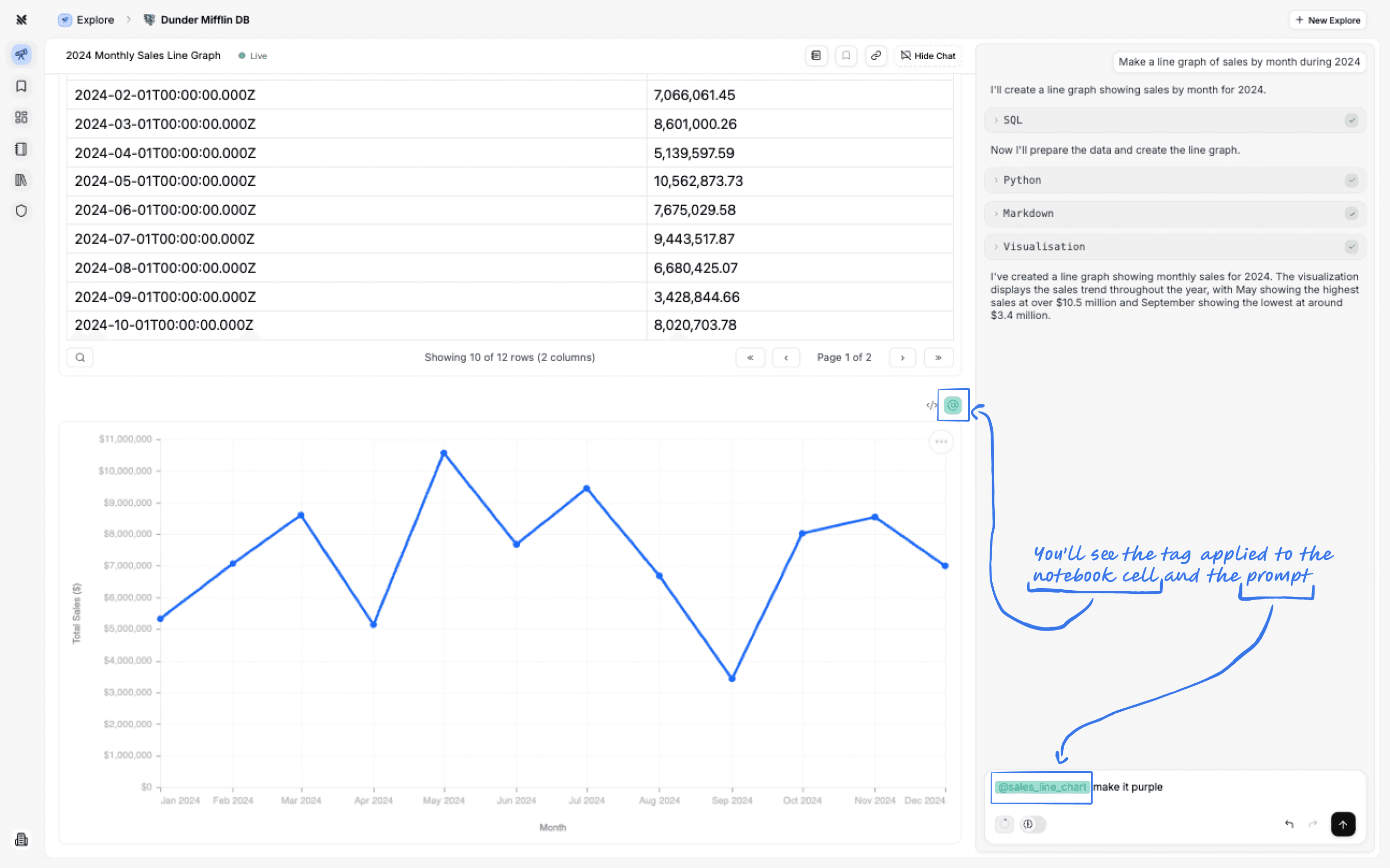
Tagging cells will make it easier to tell the agent which cells you'd like it to focus on.
You can tag a cell by clicking on the '@' sign on its top right or by typing '@' in the prompt input.
Using Mentions to Tag Macros
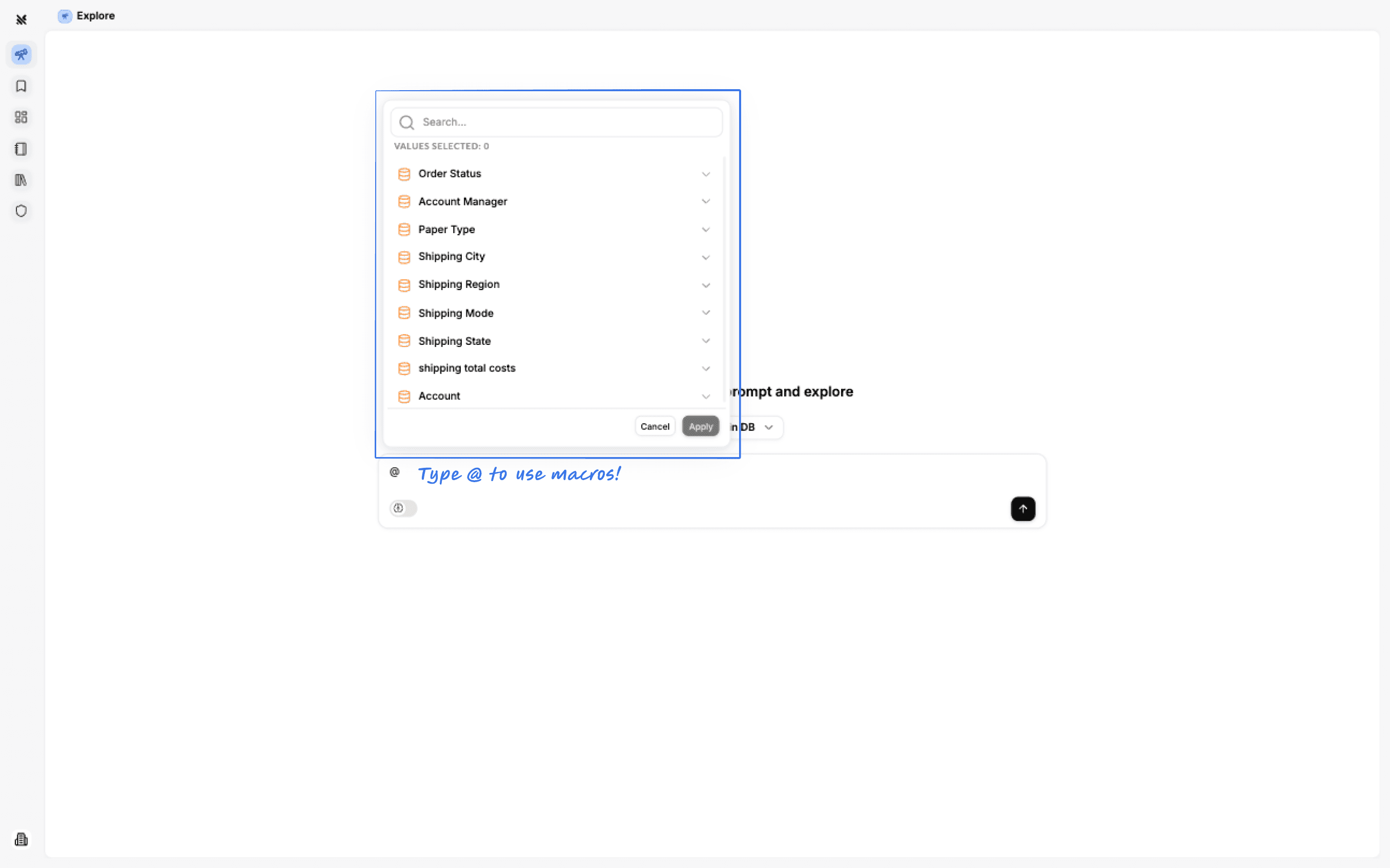
Start by typing @ in the prompt input and you'll see a list of macros in orange.
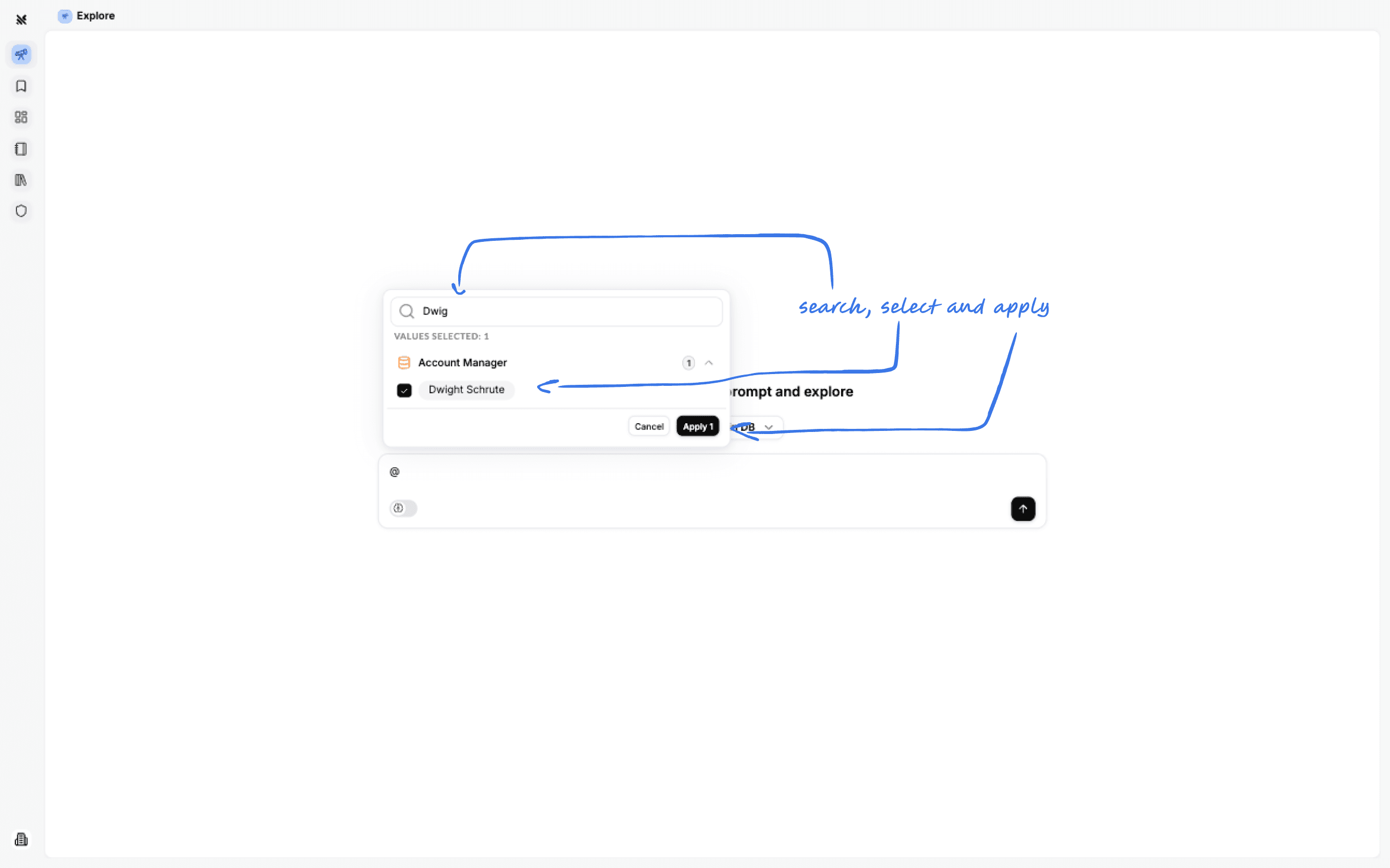
You can search for a macro by name or value, then simply select it and apply it to your prompt.
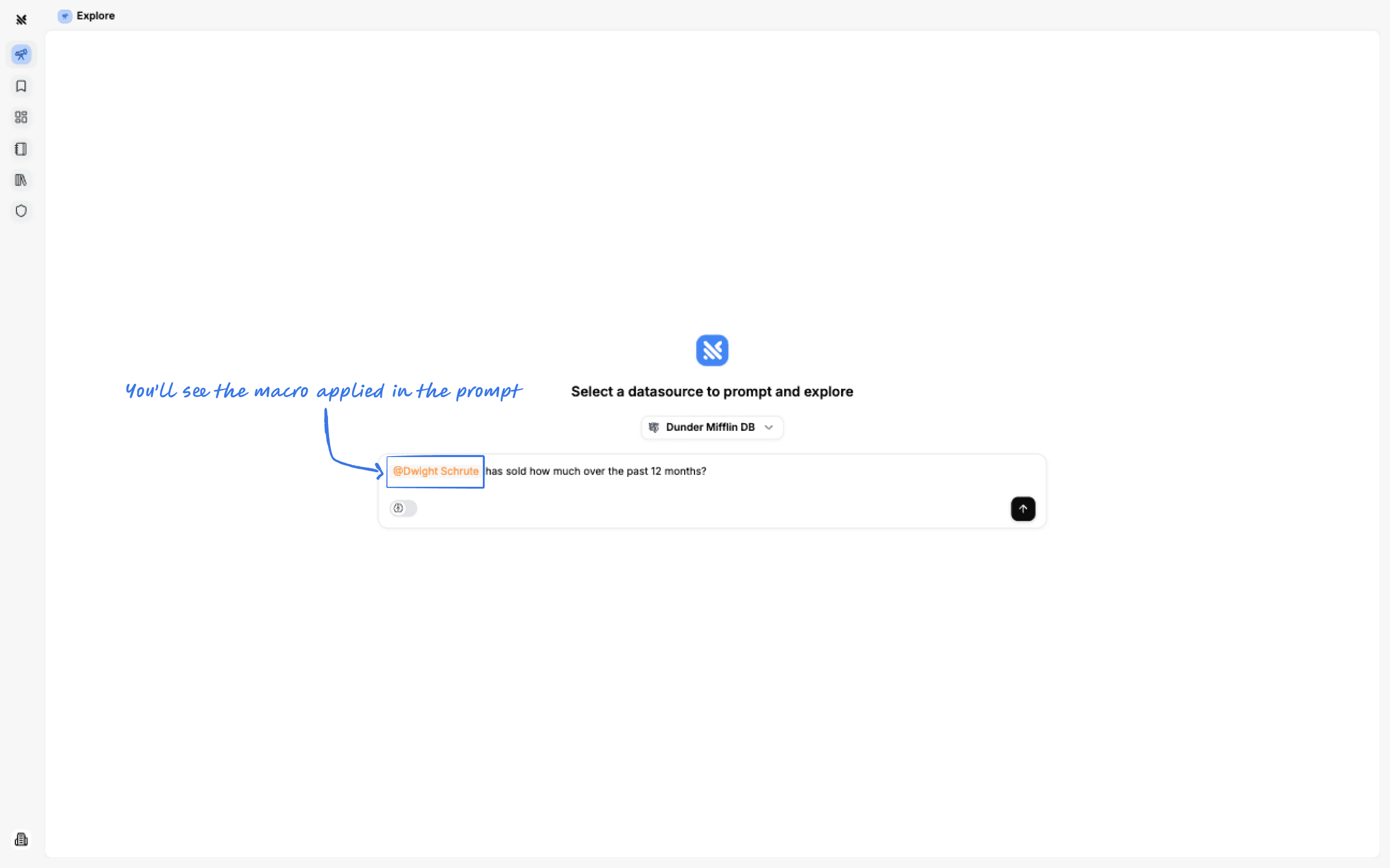
Once it's applied, you'll see the value clearly highlighted in your prompt. When you run this prompt, Querio will perfeclty understand and use the macro value in the SQL it writes for you.
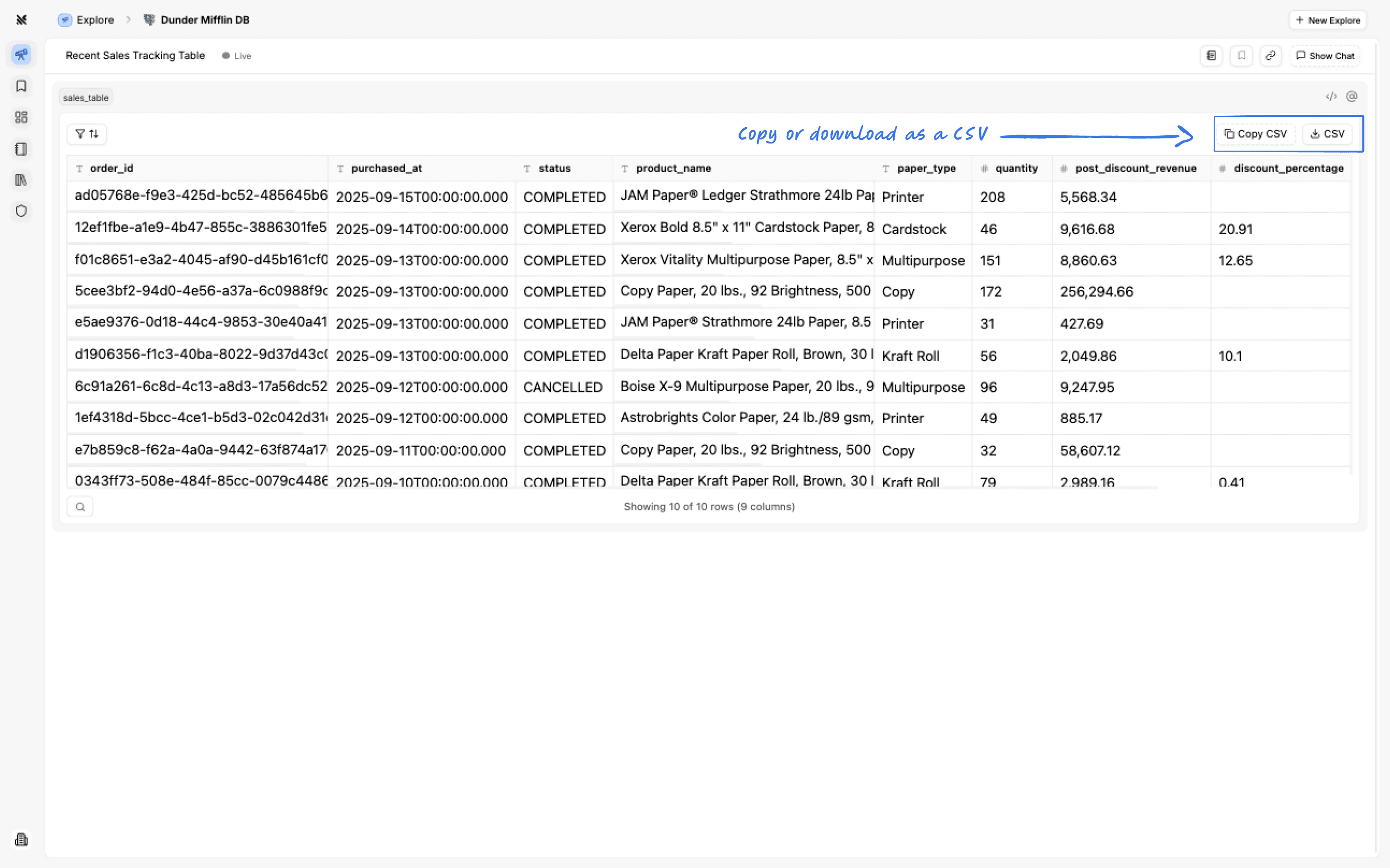
Download and Copy as CSV
You can download or copy tables you get in the Querio explore page as a CSV.
Choosing the Datasource to Explore
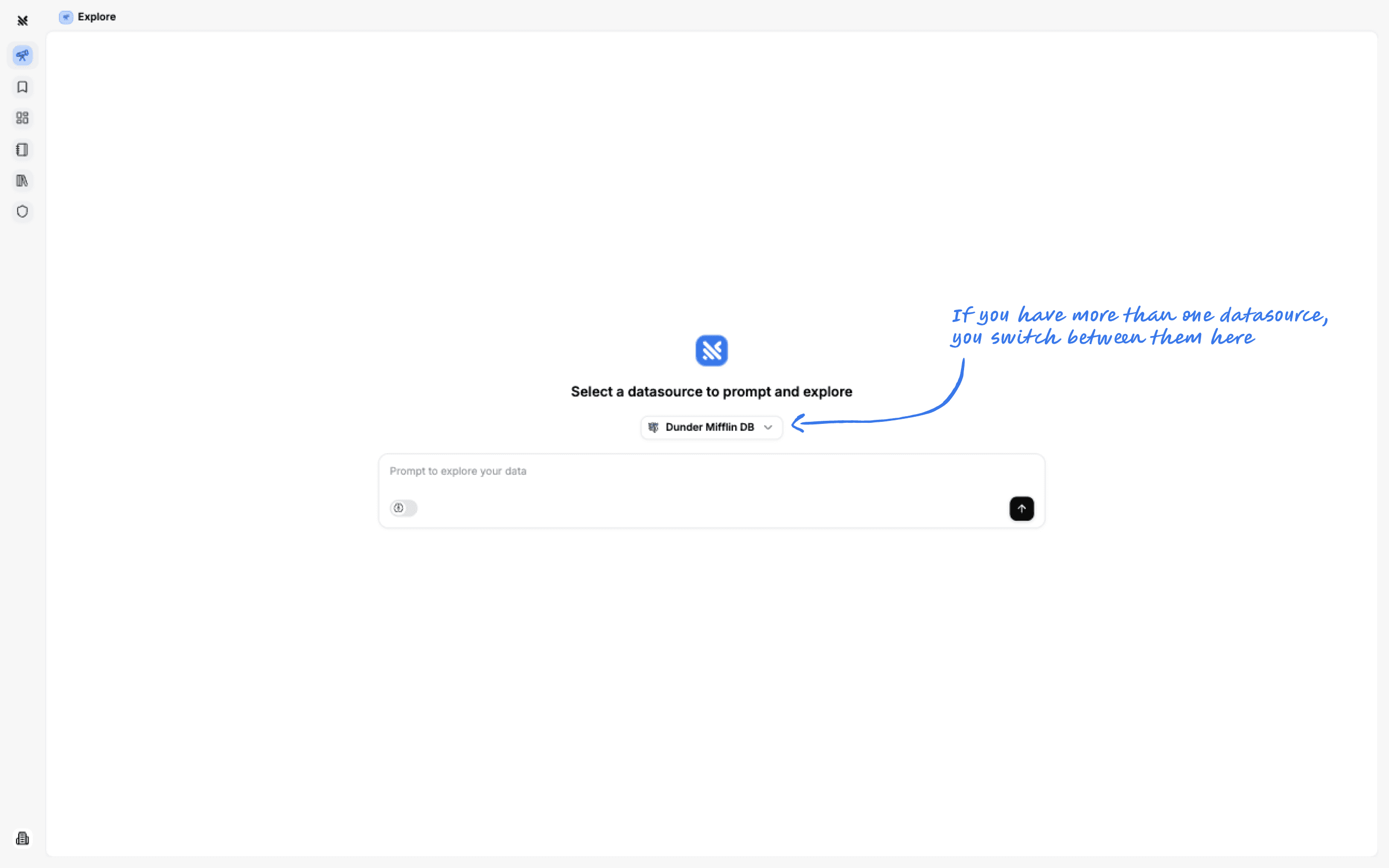
You can select different datasources to explore from the datasource selector.