Boards
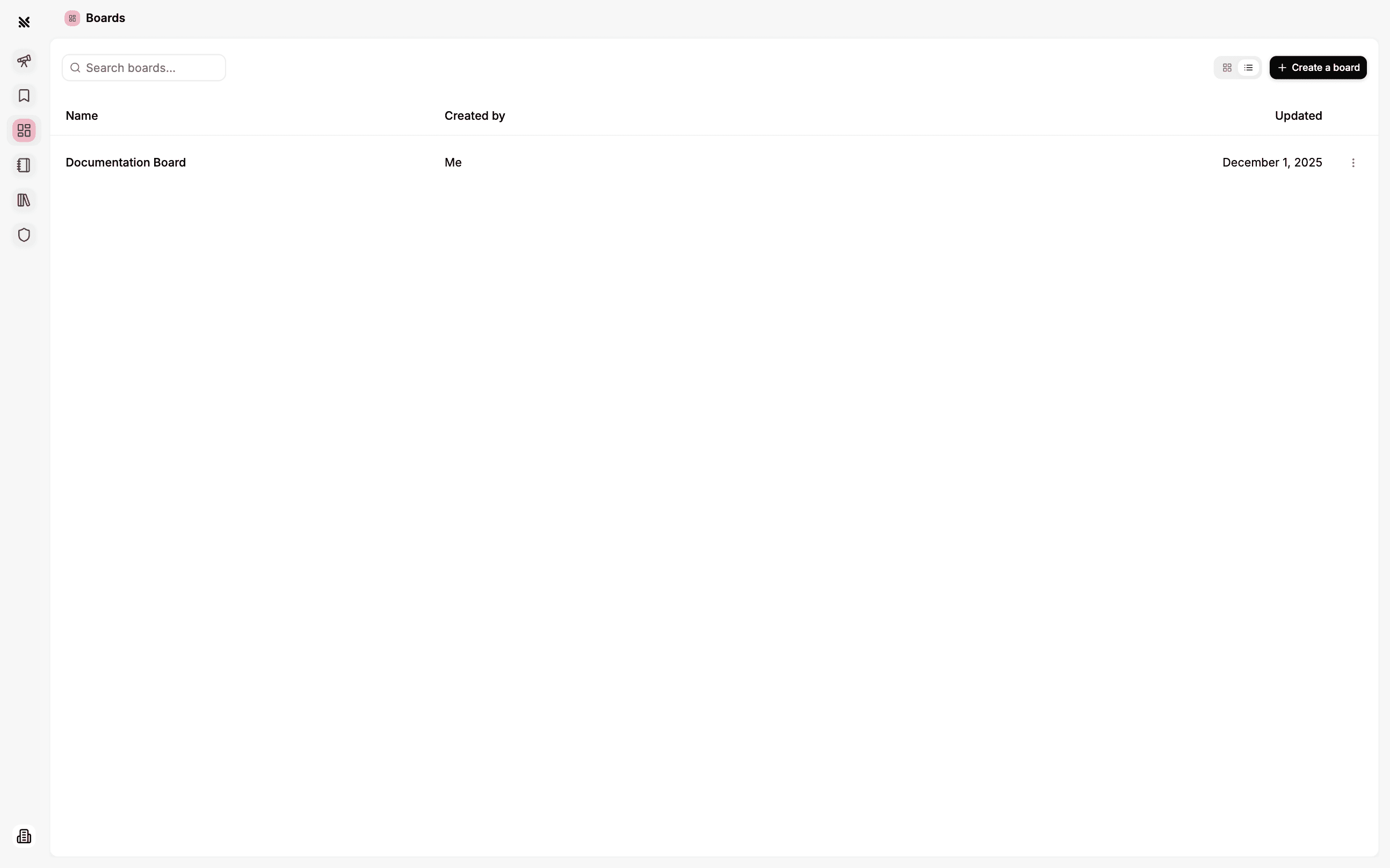
In the Boards tab you can find all of your teams' boards and create new ones. A Board is a collection of insights and it is an easy way to put many of them together to share and tell a data story.
Editing a Board
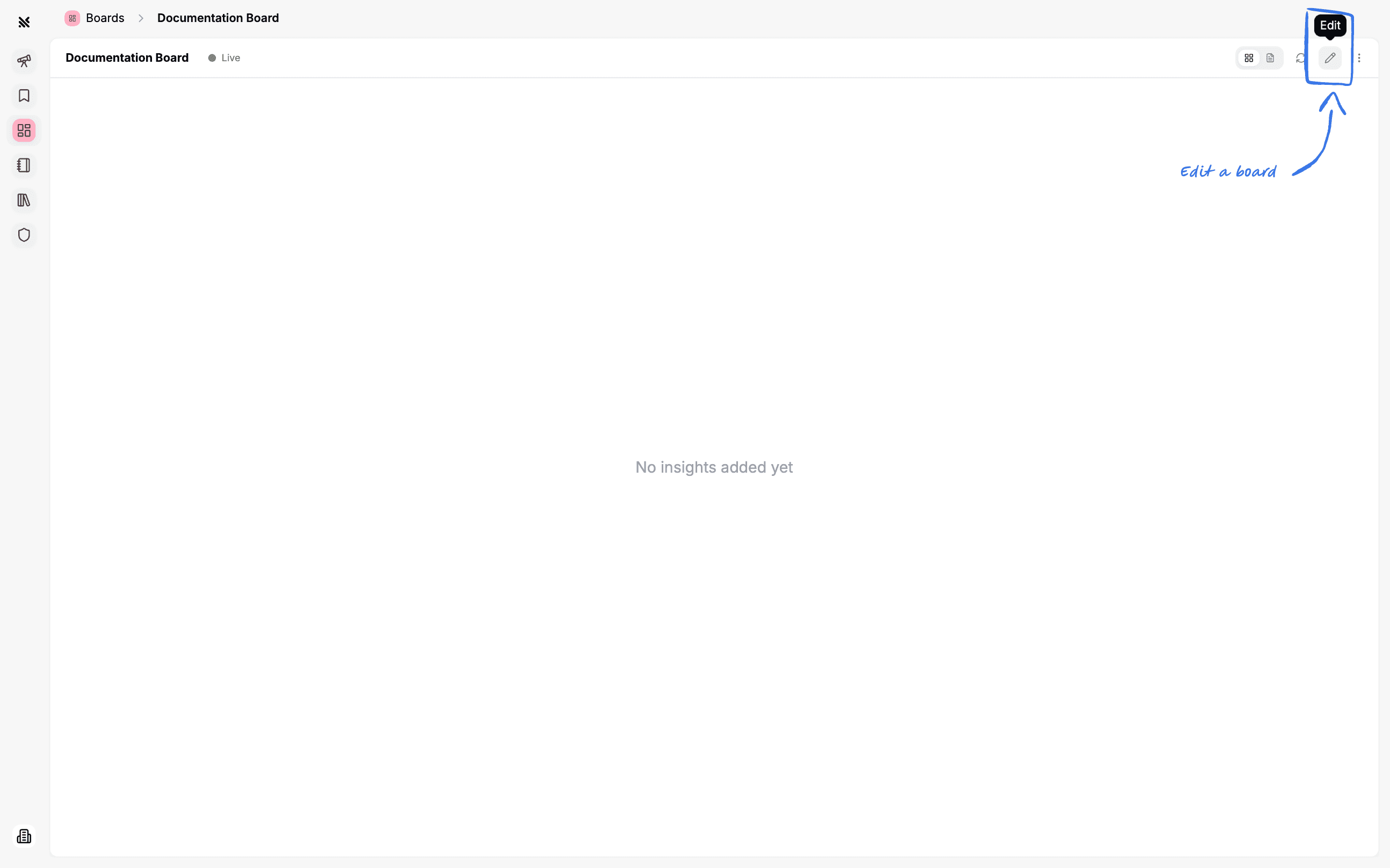
You can enter edit mode for a board by clicking the Edit button on the top right of any board.
Layout and Notebook Views
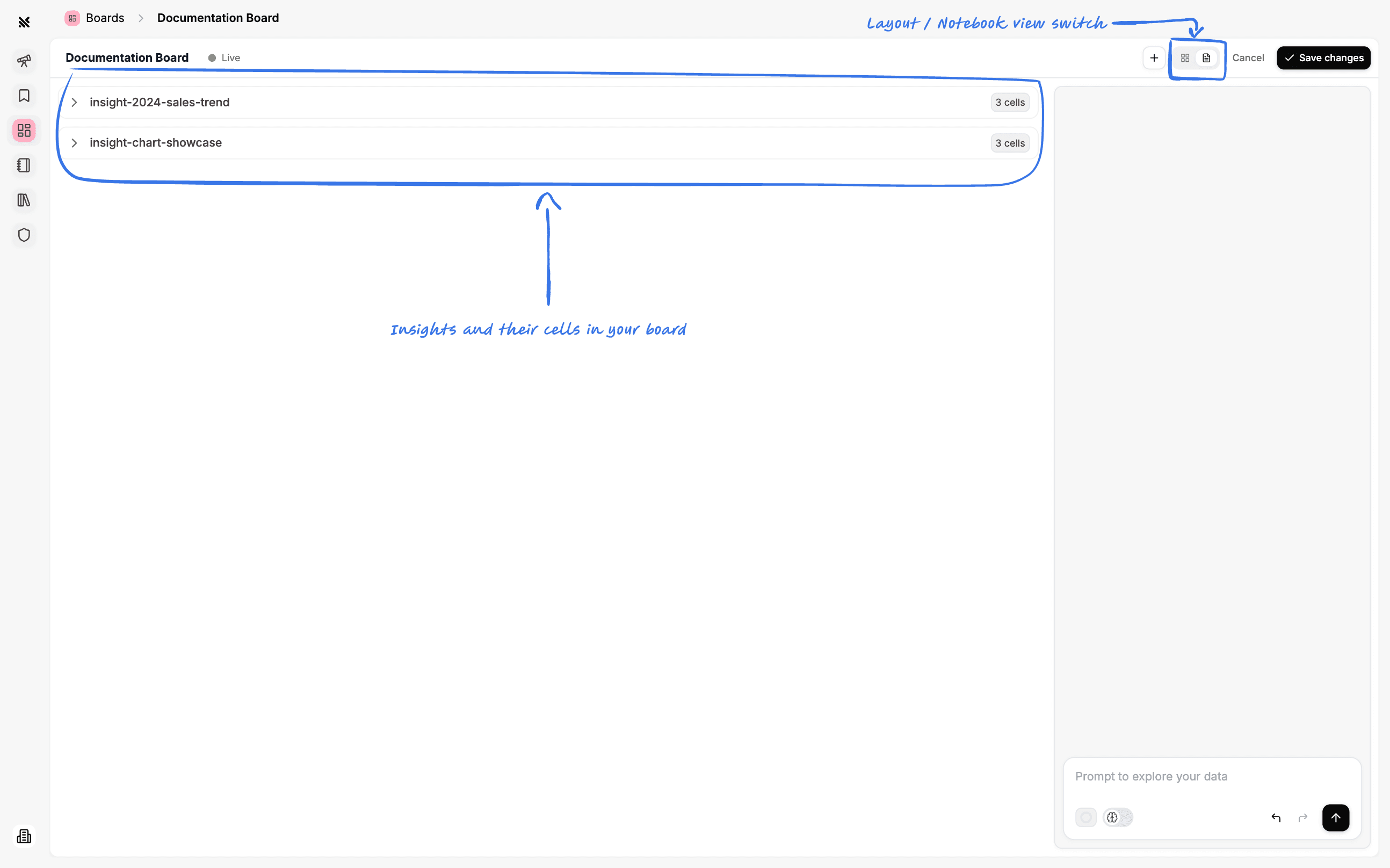
A board is made up of two parts, the layout and the notebook.
Layout
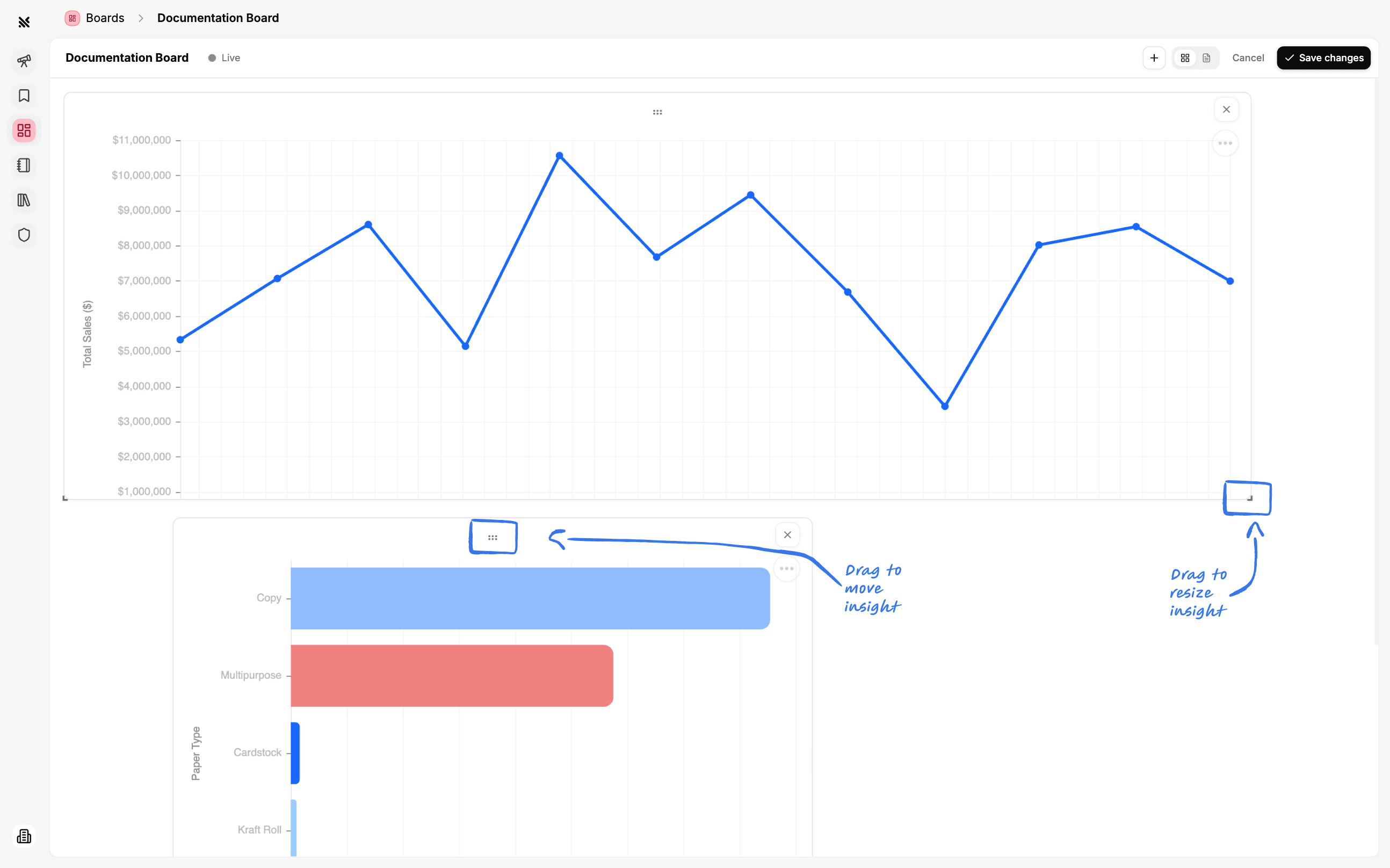
The layout lets you arrange insights in a flexible grid by dragging and resizing them.
Notebook
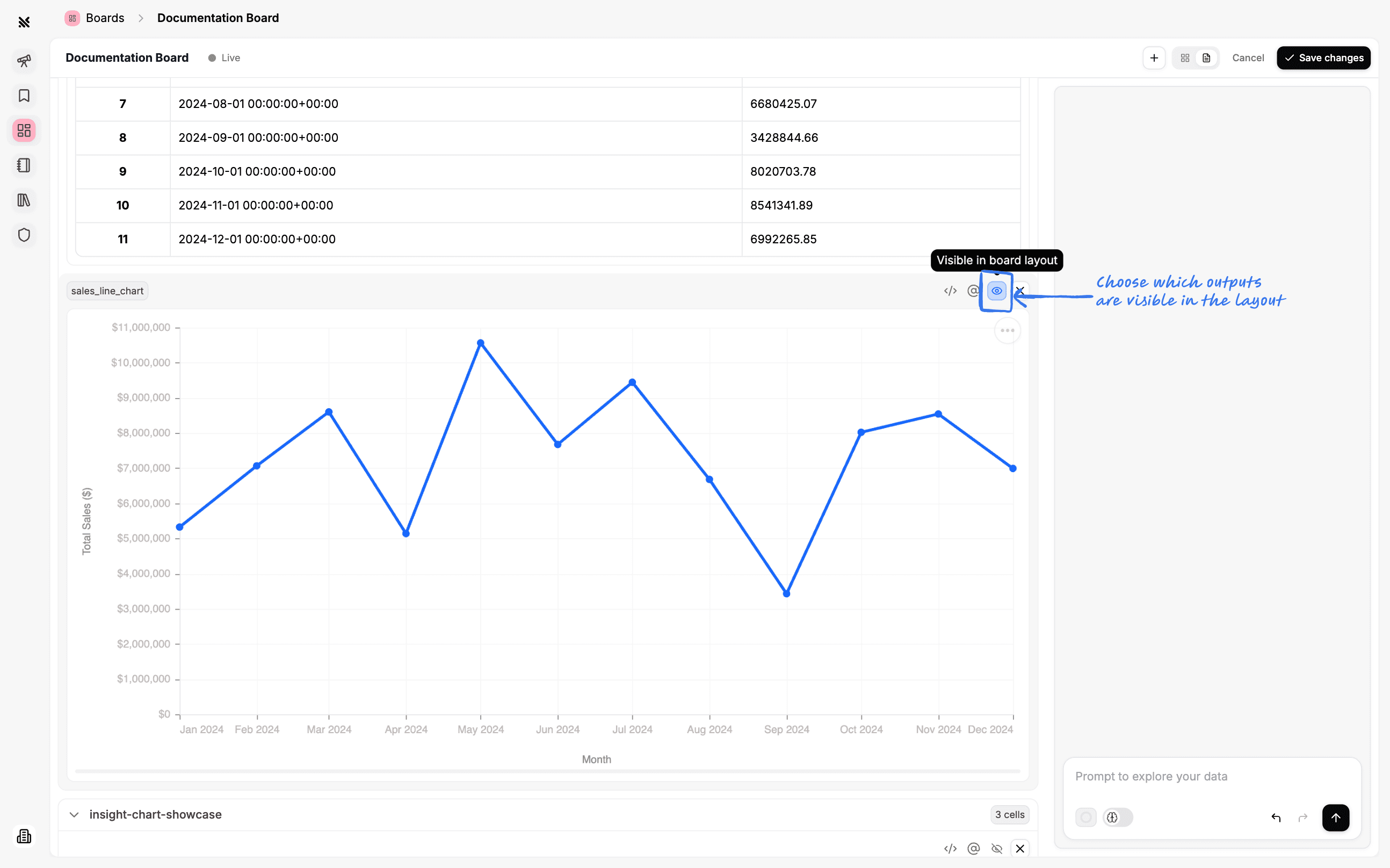
The notebook houses the insights of your board, letting you make edits to them and choose which outputs to display in the layout.
Adding Insights to a Board
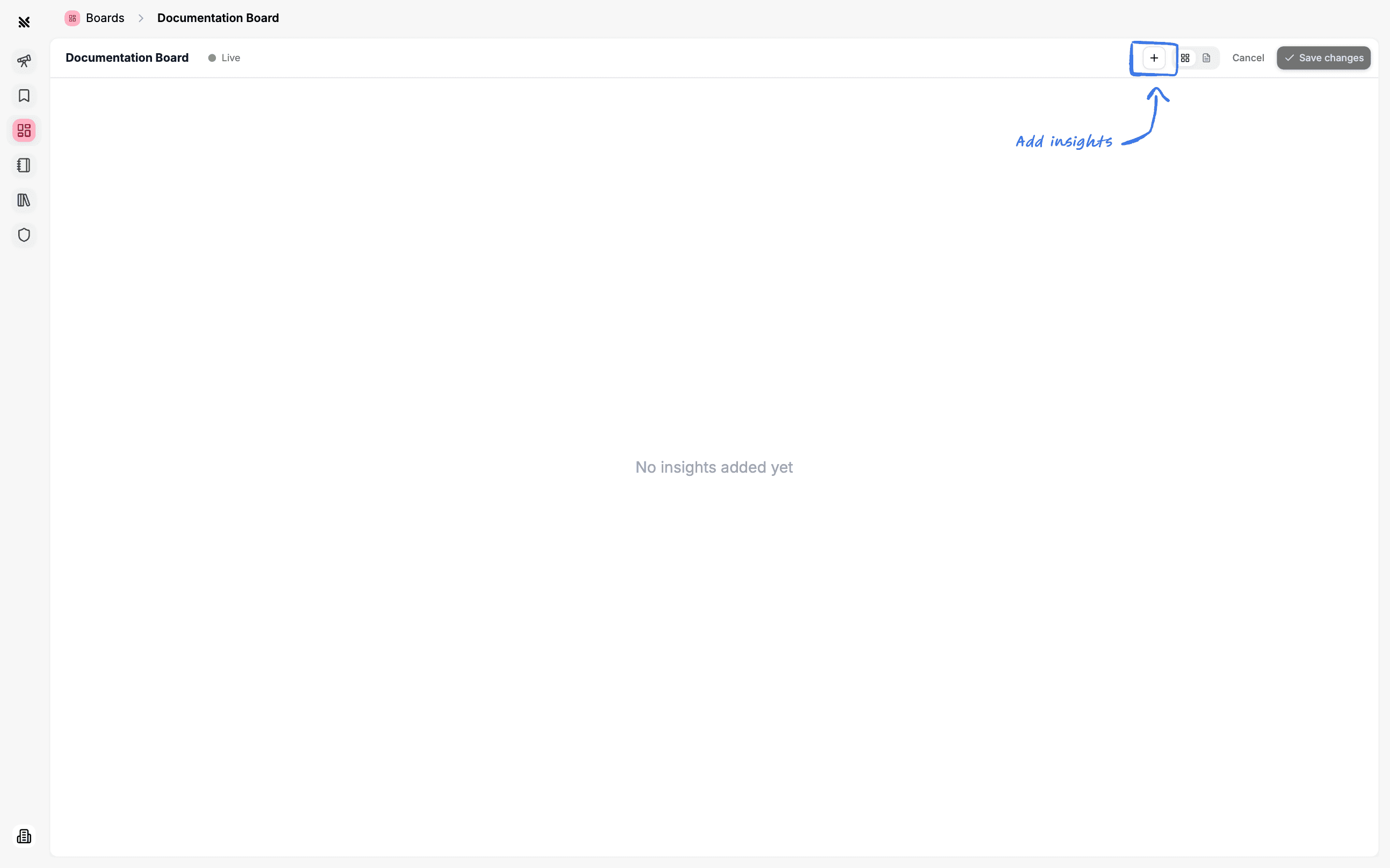
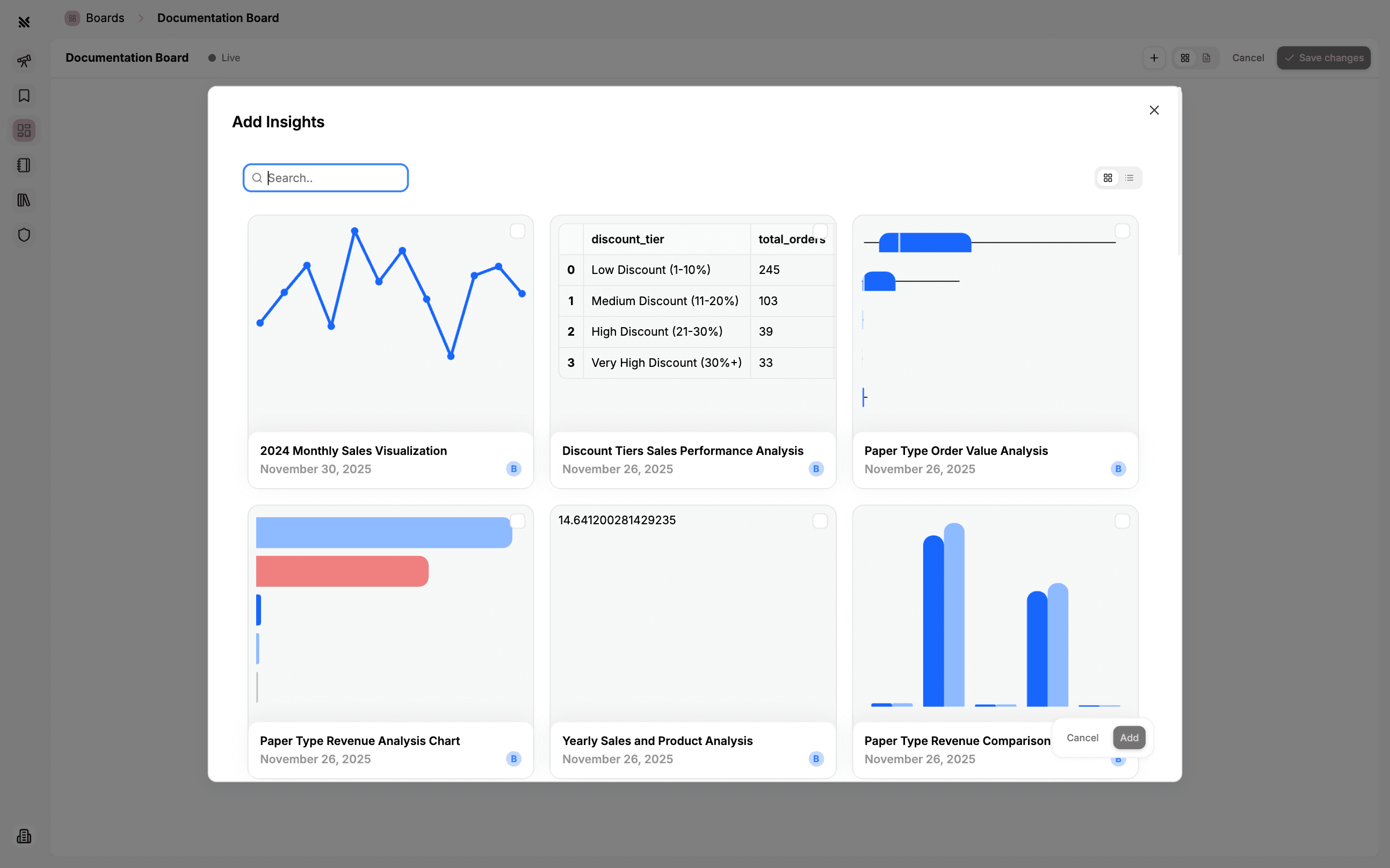
A board is nothing without insights, at the top right of a board you'll find a button to add insights.
You can click to select as many insights as you want. Once selected, you'll see a button at the bottom right to add all of the selected insights to the board at once.
Moving and Resizing Insights in the Layout
You can place an insight anywhere on the grid by simply dragging and dropping it. You'll see a shadow highlight of where the insight will end up as you're dragging it.
You can resize an insight by clicking and pulling it from an edge, just like with moving them around, you'll see a shadow highlight of where the insight will end up as you're dragging it.
Editing Insights in the Notebook
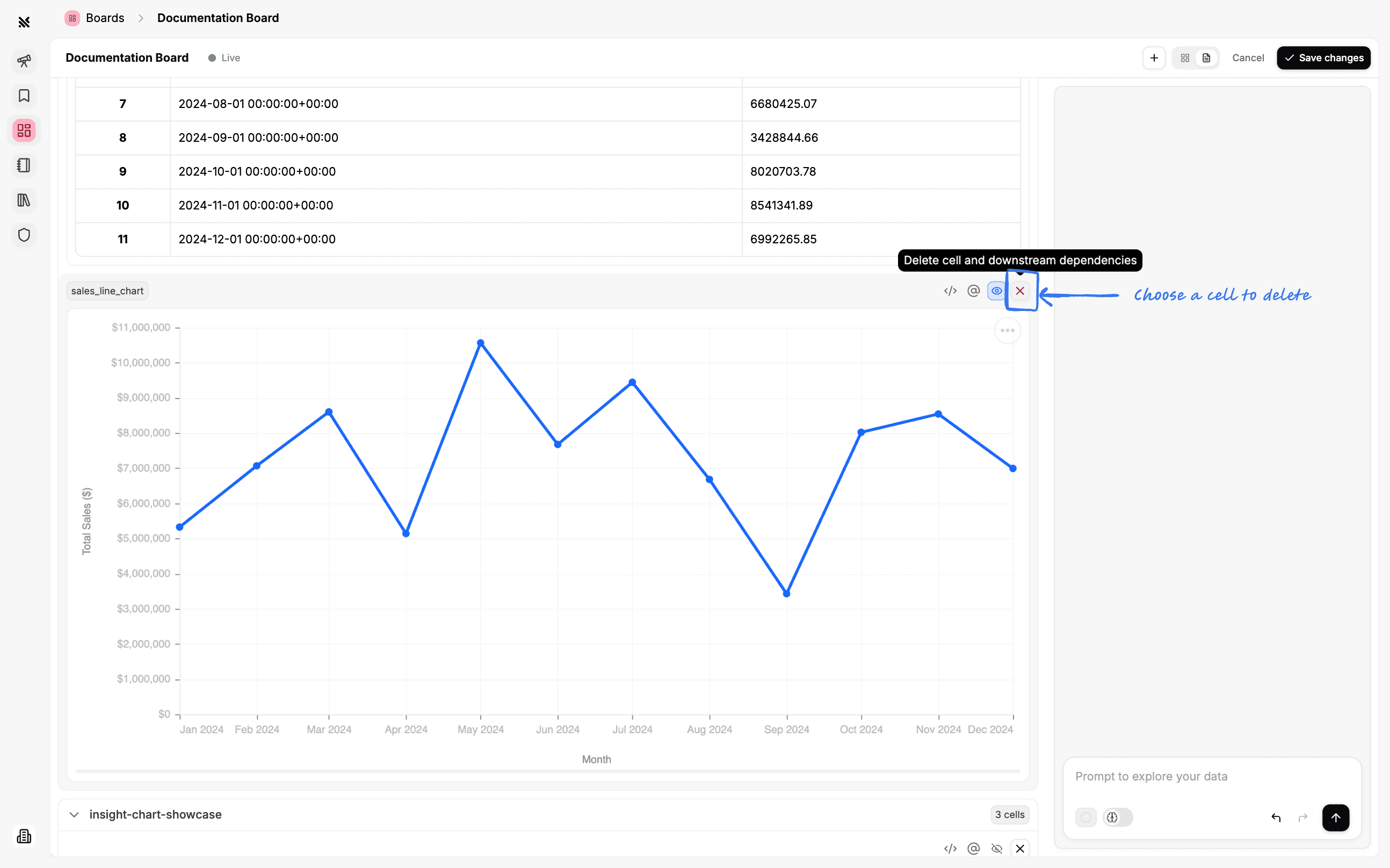
In the notebook view you will see all the insights you've added to the board. You can choose which are in the layout, edit them with the agent or remove them from the board.
Choosing Insights to Display in the Layout
You can choose which insights to display in the layout by clicking the checkbox next to the insight.
Editing an Insight
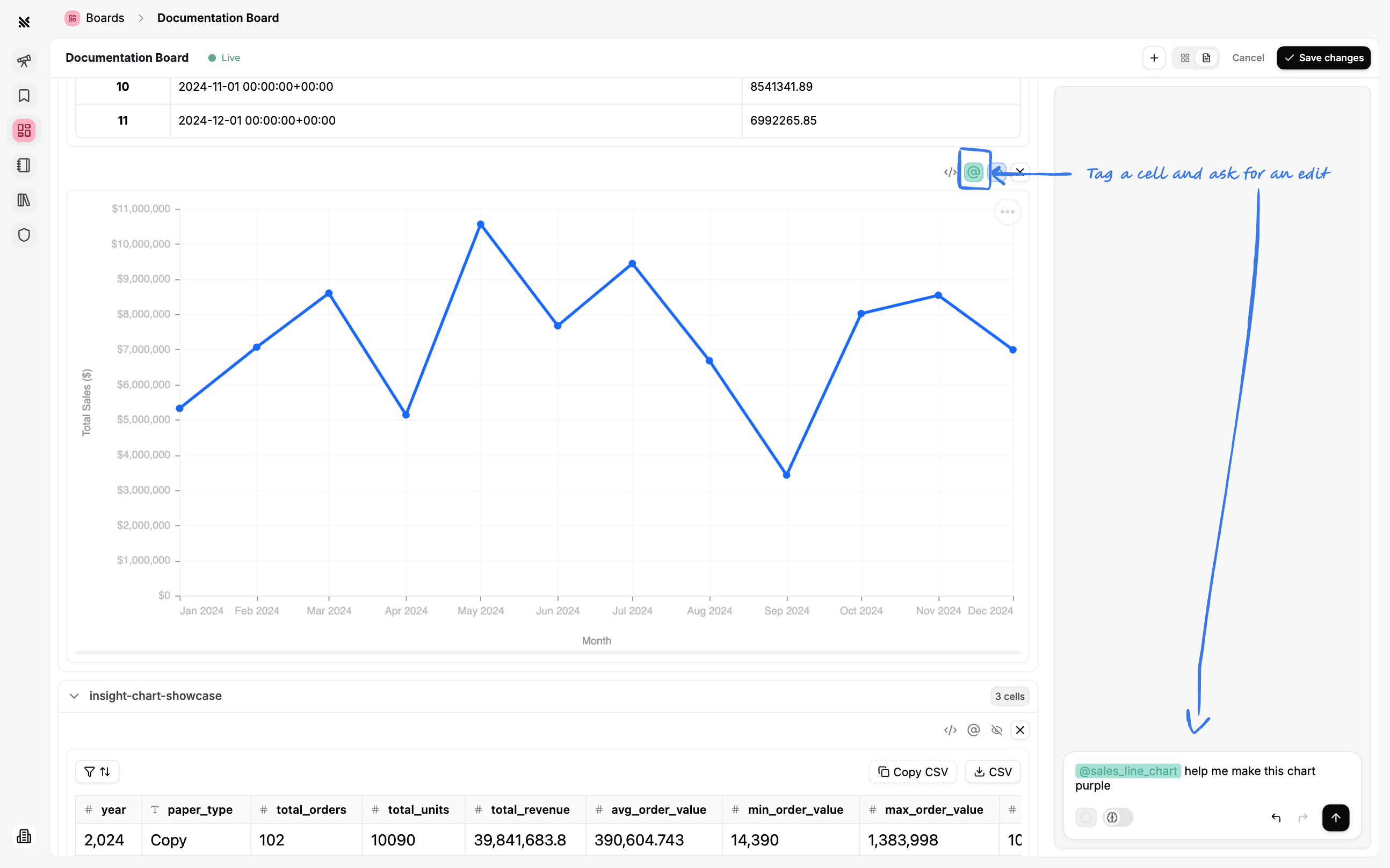
You can edit an insight by asking the agent to make changes or changing the code directly.
Removing an Insight
You can remove an insight from the boards notebook by clicking the x icon next to the insight.