Automations
Run an explore or a prompt on a schedule and deliver the results by email or Slack.
Automations run work for you on a recurring schedule — either refreshing an existing explore or running a new prompt — and can deliver the results by email or Slack.
Use them when a piece of analysis should run regularly instead of being triggered manually every time.
Creating an automation
Open Automations from the sidebar, then click New Automation.
You can also create one directly from an explore: use Schedule sync to refresh that explore on a schedule. A new automation is created automatically and linked to it.
The automation builder
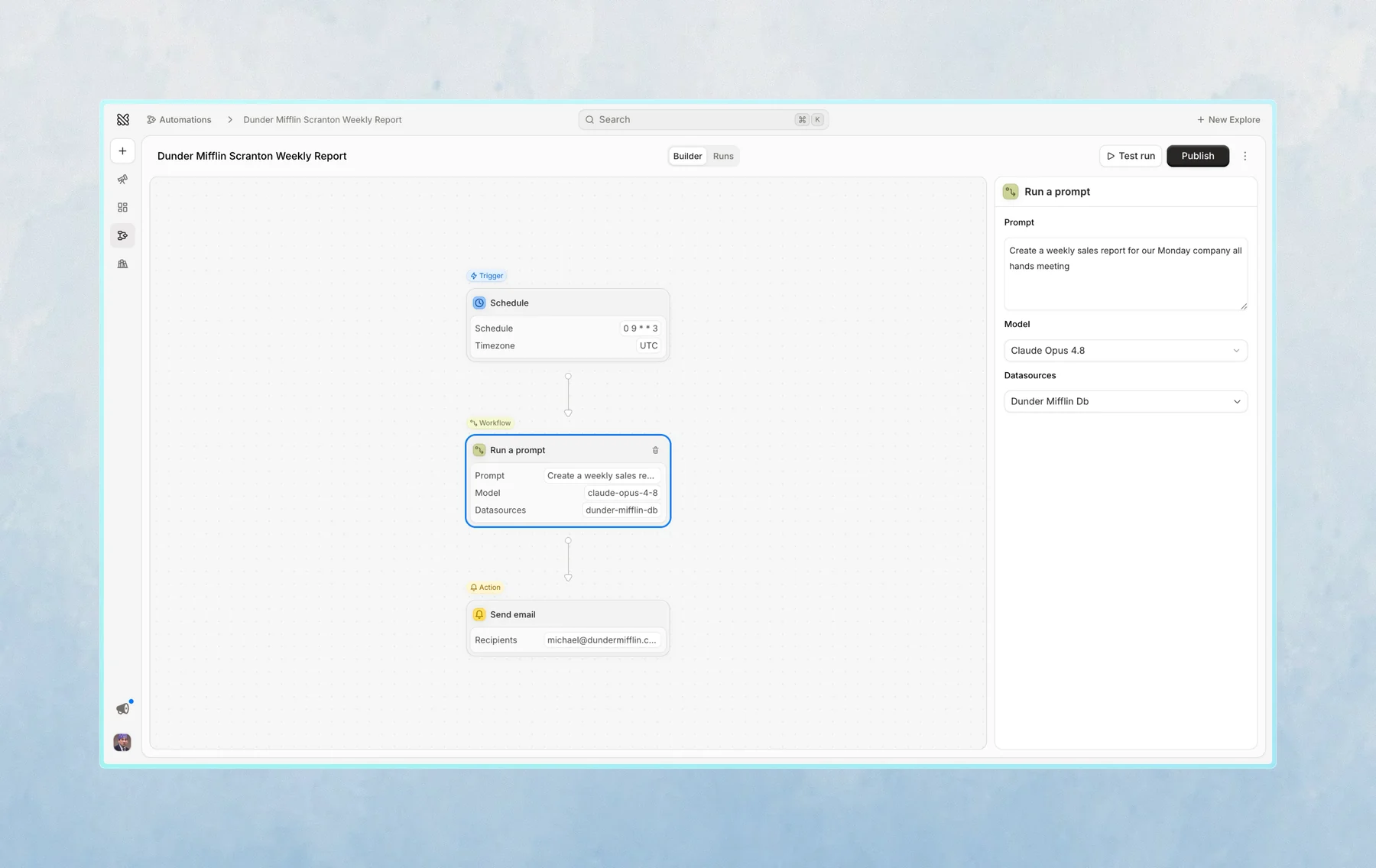
Each automation has three parts: a Trigger, a Workflow, and an optional Action.
Trigger — when it runs
The trigger is a schedule. Choose how often it runs — hourly, daily, weekly, or monthly — and pick a time of day (and the days, for weekly or monthly). Schedules run in the timezone you set.
If you need something more specific, switch to a cron expression and enter it directly.
Managed runs sharing an execution server currently execute one at a time. An automation may therefore wait before starting when other managed work is running. Interactive notebook and chat work are not subject to this limit.
Workflow — what it does
Choose one of two workflows:
- Explore sync — re-runs an existing explore's notebook to refresh its results. Use this to keep a report or dashboard up to date. Pick the explore you want to sync.
- Run a prompt — starts a new explore from a prompt each time it runs. Provide the prompt, choose a model, and select the datasource(s) Querio should use. Use this for a recurring question where you want fresh analysis on every run.
Action — where the results go
The action delivers rendered notebook output after each run. If no cells render output, it sends nothing. It's optional — without one, the automation just refreshes the explore in place.
- Send email — enter one or more recipient email addresses.
- Slack message — choose a channel. You'll need to connect your Slack integration first. Tables and supported charts appear as native Slack blocks. Automation messages contain rendered cell output, not the agent's chat reply.
Managing automations
All automations appear in the Automations list. From there you can open, edit, run, or delete any automation.
Each automation is either Live (running on schedule) or Draft (paused). Only live automations run on their schedule — use Publish and Unpublish to switch between the two. Use Test run to submit a one-off automation run and check the result before publishing.
You can also find automations in the Catalog, under the Automations folder.
Scheduled syncs
Scheduled syncs are a type of automation. If you previously set up a sync from an explore, it will now appear in Automations. The old Notebook Sync tab in Settings has been removed.
Last updated on October 13, 2026